
Last updated: October 2026 · Classic Network and Computers (CNC), O-41 West Patel Nagar, New Delhi · Computer Hardware Services →
Quick help from CNC — West Patel Nagar, Delhi
Need laptop repair in Delhi?
CNC fixes all brands — Dell, HP, Lenovo, MacBook. Same-day service from ₹299. Free pickup within 10 km.
⭐ 4.9★ · 1,000+ Google reviews · Since 1996 · GST invoice · Learn more →
A dropped hard drive. A RAM module touched with bare hands. A desktop opened near a running AC vent. A monitor moved while still plugged in. Each of these mistakes costs Delhi offices anywhere from ₹2,000 to ₹15,000 in repairs — and some cause permanent, unrecoverable data loss. These 10 rules for safe handling of computer hardware apply to every office IT staff member, admin who replaces toner, or manager who moves a desktop. Follow them and your hardware lasts longer. Ignore them and the repair bills tell the story.
Quick cost context: The average avoidable hardware damage repair in a Delhi office costs ₹3,000–₹12,000. A RAM module damaged by static discharge: ₹1,500–₹8,000 replacement. A hard drive dropped from desk height: ₹8,000–₹25,000 data recovery — if recovery is even possible. Proper handling costs nothing. Improper handling is one of the top reasons Delhi offices call CNC for emergency repairs.
Rule 1 — Always Discharge Static Before Touching Any Internal Component
Static electricity (electrostatic discharge, or ESD) is the single most common cause of preventable hardware damage in offices. A charge of just 30 volts — far below what a human can feel — is enough to damage a RAM module, CPU, or motherboard. Walking across a carpeted floor in a dry Delhi winter office can build up 1,500–35,000 volts on your body.
What to do
- Touch a grounded metal surface (unpainted metal on the computer case, a metal table leg, an earthed wall socket surround) before touching any internal component
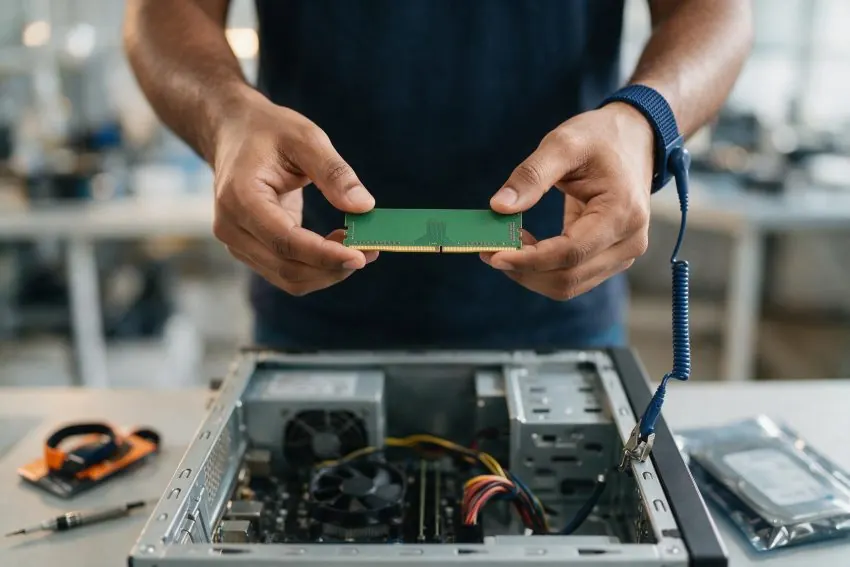
- Wear an anti-static wrist strap connected to earth when working inside any computer for more than a few seconds — they cost ₹150–₹400 and prevent thousands of rupees in damage
- Work on a rubber anti-static mat when possible
- Keep internal components in their anti-static bags until the moment of installation
What not to do
- Do not touch PCB traces, RAM slots, or processor pins with bare hands
- Do not work in socks on carpet — this generates more static than almost any other scenario
- Do not place components on foam, cardboard, or plastic bags — only anti-static surfaces
Rule 2 — Always Power Down and Disconnect Before Opening Any System
This sounds obvious. It is violated constantly in Delhi offices — usually because someone is “just quickly checking” a cable or swapping a USB device. Hot-plugging internal components, or working inside a powered system, risks:
- Short-circuiting the motherboard if a dropped screw completes a live circuit
- Damaging the PSU or connected devices if a component is inserted under power
- Electrical shock to the person — rare at desktop voltages but not impossible
The correct shutdown sequence
- Shut down the operating system — not sleep, not hibernate — fully powered off
- Switch off the power button on the back of the PSU (if present)
- Unplug the mains cable from the wall socket — not just from the PSU
- Press the power button once with the cable unplugged — this discharges residual capacitor charge from the motherboard
- Then open the case
Rule 3 — Handle Hard Drives as if They Contain Your Most Valuable Data — Because They Do
A hard disk drive contains spinning magnetic platters and read/write heads that float nanometres above the surface. The read heads retract when the drive is powered off, but a dropped drive — even from just 30cm — can damage the heads or cause platter warping that makes data unrecoverable.
Hard drive handling rules
- Never drop or knock a hard drive — not even a gentle knock on a desk edge
- Never move a desktop or laptop while the HDD is active — wait for the LED activity light to stop blinking
- Always transport HDDs in foam-padded, anti-static packaging — never loose in a bag or box
- Hold an HDD by its sides, not by the connector end — the SATA connector is fragile and a bent pin means a dead drive
- Lay HDDs flat — do not stand them on edge during transport unless the manufacturer’s specification permits it
If a drive is dropped: do not power it on. Bring it to CNC immediately for assessment. A drive that appears to work after a drop may have head damage that causes a catastrophic failure days later — after you have stopped worrying about it.
Rule 4 — Treat SSDs and NVMe Drives Carefully Despite Their Reputation for Durability
SSDs and NVMe drives have no moving parts and are more physically robust than HDDs — but they are not indestructible. The damage risks are different:
- Bending an M.2 NVMe drive — the PCB can crack, destroying the controller or breaking connections to the NAND chips. Never flex an M.2 drive when inserting or removing it.
- Voltage damage — SSDs are more vulnerable to power surges than HDDs. A power spike that a hard drive survives may kill an SSD controller.
- Connector damage — the M.2 slot is small and the connector is fragile. Insert M.2 drives at the correct angle (usually 30°) and do not force them.
- Static discharge — the NAND flash chips on an SSD are as sensitive to ESD as RAM modules. Same anti-static rules apply.
Rule 5 — Never Force RAM. Align It Before Pressing.
RAM is one of the most frequently damaged components during DIY upgrades in Delhi offices. The most common mistake: inserting a DIMM the wrong way round and forcing it — which bends the DDR connector pins beyond recovery.
Correct RAM installation technique
- Identify the notch on the RAM module — it must align with the key in the slot
- Open both retention clips at each end of the slot
- Hold the RAM by the short edges — never touch the gold contacts or PCB traces
- Align the module above the slot and press down evenly with both thumbs — firm, even pressure, not a rocking motion
- Listen for both retention clips to click into place
- If it does not click, do not force it — check the orientation
RAM that is incorrectly seated (not fully clicked in) is one of the most common causes of “computer won’t start” calls CNC receives. Always verify both clips are engaged before closing the case.
Rule 6 — Never Yank Cables. Disconnect by the Connector, Not the Cable.
Yanking a cable to disconnect it — instead of gripping the connector head and pulling — is how ports get damaged. The most common incidents in Delhi offices:
- USB ports physically broken — the port socket detaches from the motherboard when a USB cable is pulled at an angle under force. Repair cost: ₹600–₹2,500 depending on whether it can be soldered or needs a motherboard replacement.
- Laptop charging ports damaged — the most common laptop repair CNC performs. Almost always caused by the charger cable being pulled while the laptop is elevated, levering the port socket off the board. Repair cost: ₹599–₹1,999.
- SATA data cables pulled out of drives — SATA connectors have no locking mechanism. Pulling the cable at an angle bends the contacts on the drive itself.
- Monitor display cables (HDMI, DisplayPort, VGA) bent — the pins in VGA connectors bend easily if not aligned carefully before connecting.
Rule
Always grip the plastic connector head. Pull straight out, not at an angle. If a connector is stiff, wiggle gently while pulling — never use sideways force. For locking connectors (some power connectors, PCIe power plugs), find and press the release tab before pulling.
Rule 7 — Never Block Ventilation. Position Equipment for Airflow.
Overheating is the second-most common cause of preventable hardware failure in Delhi offices — particularly severe during the May–July peak summer months when ambient temperatures reach 42–45°C and office cooling is under maximum load.
Ventilation rules
- Desktop computers: keep at least 15cm clearance on all sides with ventilation holes. Never push a desktop flush against a desk panel or inside a closed cabinet.
- Laptops: never use a laptop on a bed, sofa, or soft surface — the fabric blocks the bottom vents within minutes. Use a hard, flat surface or a laptop stand with open airflow.
- Servers: server racks require front-to-back airflow. Do not place equipment that blocks the cold aisle intake or hot aisle exhaust.
- AC units positioned above computers: cool air dripping condensation onto electronics causes corrosion. Check that no AC unit drips above any computer equipment in the office.
Delhi-specific: quarterly dust cleaning is essential
Delhi’s air quality means CPU heatsinks, GPU fans, and PSU filters clog within 3–6 months — faster than almost any other Indian city. A clogged heatsink can raise CPU temperature by 15–20°C, causing thermal throttling, random shutdowns, and accelerated component aging. CNC’s IT AMC includes quarterly cleaning as a standard deliverable — the single highest-ROI preventive maintenance task in a Delhi office.
Rule 8 — Handle Monitors and Laptop Screens by the Frame, Never the Panel.
LCD and OLED panels are pressure-sensitive. Pressing on the screen surface — even lightly — can cause permanent pixel damage (pressure marks, dead zones, colour bleed). The damage is irreversible and not covered by most warranties as it is classified as physical damage.
- Always carry a monitor by its frame or stand — never pick it up with fingers pressed against the screen
- Do not clean screens with paper towels, rough cloths, or dry tissue — use a microfibre cloth with minimal pressure
- When transporting monitors, use the original foam-insert packaging if available; otherwise, ensure the screen faces the padded side
- Never stack monitors face-to-face without padding between the screens
- Close laptop lids carefully — do not press on the outer lid where pressure transfers to the screen inside
Rule 9 — No Liquids Near Equipment. Zero Tolerance Policy.
Water damage is one of the most common emergency calls CNC receives from Delhi offices — and one of the most preventable. A cup of tea knocked onto a keyboard can mean a new keyboard (₹999–₹2,999) or, if the liquid reaches the motherboard, a complete laptop repair (₹1,500–₹8,000+).
Practical office rules
- No open liquid containers on desks with computers, servers, or networking equipment
- If liquid does spill on a laptop or computer: power off immediately, do not try to continue working. Attempting to keep working after a spill while current is flowing causes far more damage than the liquid itself.
- Laptops: after a spill, turn upside down immediately to drain. Do not power on for at least 48 hours and bring to CNC for professional cleaning.
- Keyboards: a keyboard that gets wet can be replaced for ₹300–₹2,999. A motherboard that gets wet costs far more. Prioritise getting the liquid away from the more expensive component.
Rule 10 — Document Every Change. Log Every Repair. Maintain an Asset Register.
This is the rule most often dismissed as administrative overhead — and the one whose absence causes the most problems during hardware failures, audits, and IT transitions. An accurate asset register means:
- You know exactly what is under warranty (and can claim repairs instead of paying for them)
- You know when RAM or HDD upgrades were performed and what was installed
- When a system fails, the IT support engineer knows its history without guessing
- When an employee leaves and takes a laptop, you have the serial number to identify it
- When purchasing replacement parts, you know the exact model and specification
Minimum asset register fields for each device
| Field | Example |
|---|---|
| Device type and brand/model | Dell OptiPlex 5090, HP Pavilion 15 |
| Serial number | As printed on the label |
| Purchase date and invoice number | 14 March 2024, INV-CNC-2024-0341 |
| Warranty expiry date | 13 March 2027 |
| Assigned user | Pooja Sharma, Sales Team |
| Location | Desk 12, Second Floor |
| Upgrade history | RAM upgraded 8GB→16GB, July 2025 |
| Repair history | Keyboard replaced Feb 2026, CNC Invoice #XX |
CNC’s IT AMC clients receive a maintained asset register as part of the service — updated after every preventive visit and every repair.
When These 10 Rules Are Not Enough — Professional IT Support
These 10 rules reduce avoidable damage caused by office staff handling. They do not replace professional IT support for the tasks that require specialist tools, training, and experience:
| Task | Office staff can do it | Requires professional IT support |
|---|---|---|
| Replacing a keyboard | ✅ With these rules | — |
| Adding RAM | ✅ With these rules | — |
| Replacing a hard drive (desktop) | ⚠️ With care, using these rules | Data migration requires specialist tools |
| Replacing laptop screen | ❌ | ✅ Ribbon cables and adhesive require training |
| Motherboard-level repair | ❌ | ✅ Always — chip-level work |
| Server hardware changes | ❌ | ✅ Always — risk of data loss |
| RAID configuration | ❌ | ✅ Always — incorrect RAID rebuild destroys data |
| Quarterly dust cleaning (desktops) | ✅ With compressed air | — |
| Quarterly cleaning (laptops, servers) | ❌ | ✅ Disassembly required |
| Network infrastructure changes | ❌ | ✅ Cabling, switch config, VLAN |
For everything in the third column, CNC provides professional IT support across Delhi NCR — through scheduled AMC visits, dedicated resident engineers, and on-call break-fix service.
Frequently Asked Questions
What are the most important rules for safe handling of computer hardware?
The three most critical rules for safe handling of computer hardware in an office are: (1) always discharge static before touching internal components — ESD is the most common cause of preventable hardware damage; (2) always power down and unplug before opening any system; (3) handle hard drives with extreme care — a drop from desk height can make data unrecoverable and cost ₹8,000–₹25,000 in recovery fees. The other seven rules in this guide prevent the next most common types of avoidable damage.
What is the importance of proper handling of computer hardware components?
Proper handling of computer hardware directly reduces repair costs, extends equipment life, and prevents data loss. In a Delhi office, the average cost of a preventable hardware repair is ₹3,000–₹12,000. A dropped hard drive may result in permanent data loss worth far more than the device itself. Proper handling techniques — ESD protection, correct shutdown before opening, cable management, ventilation clearance — collectively extend average desktop life by 1–3 years and reduce emergency repair incidents by 60–80%.
How should you safely handle static-sensitive computer components?
To safely handle static-sensitive computer components: discharge your own static first by touching grounded metal; wear an anti-static wrist strap connected to an earthed surface; keep components in anti-static bags until the moment of installation; hold PCBs (RAM, graphics cards, motherboards) by their edges — never touch the gold contacts, connectors, or PCB traces; work on an anti-static mat if available; avoid working in dry, carpeted environments without ESD protection.
What is the first step to performing hardware maintenance in an office?
The first step to performing any hardware maintenance in an office is a full, proper shutdown: close all applications, shut down the operating system completely (not sleep or hibernate), switch off the PSU, unplug from the wall, and press the power button once to discharge residual capacitor charge from the motherboard. This sequence ensures no live current is flowing before any internal component is touched, preventing electrical damage to both the hardware and the person performing the work.
How often should office computer hardware be cleaned in Delhi?
Office computer hardware in Delhi should be cleaned every 3–4 months — more frequently than the standard 6-month recommendation for most cities, because Delhi’s particulate air quality means heatsinks and fans clog significantly faster. A clogged CPU heatsink raises processor temperature by 15–20°C, causing thermal throttling, random shutdowns, and reduced component lifespan. CNC’s IT AMC for Delhi offices includes quarterly preventive cleaning as a standard deliverable.
When should I call a professional IT company instead of handling hardware myself?
Call a professional IT company for: any laptop internal repair (screens, keyboards, motherboards, charging ports — all require specialist disassembly tools and training); all server hardware changes; any RAID or NAS maintenance; chip-level motherboard repair; and any situation where data on the drive may be at risk. Attempting these without training commonly results in additional damage that converts a ₹2,000 repair into a ₹15,000+ recovery job. CNC provides professional hardware support across Delhi NCR with same-day response for AMC clients.
CNC Delhi — IT Support & Hardware Services
When hardware needs a professional — CNC is on-site within hours across Delhi NCR
CNC provides professional computer hardware supply, repair, and maintenance for offices across Delhi NCR. IT AMC with quarterly preventive visits keeps your hardware clean, documented, and running. Resident engineers available for daily on-site support. Since 1996.
Related Services at CNC
You May Also Like
📍 O-41 West Patel Nagar · Mon–Sat 10 AM–7 PM
Need laptop repair in Delhi?
CNC fixes all brands — Dell, HP, Lenovo, MacBook. Same-day service from ₹299. Free pickup within 10 km.
⭐ 4.9★ · 1,000+ Google reviews · Since 1996 · GST invoice · Learn more →
Prices and rates mentioned in this article are indicative estimates as of October 2026, exclusive of GST unless stated, and may change without notice due to exchange-rate movements, supply constraints and market demand. Please confirm current pricing and availability with CNC before making any decision.