
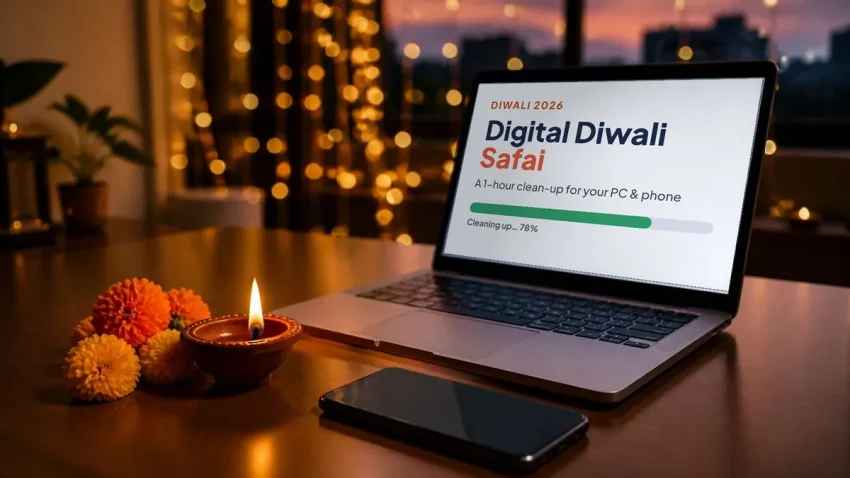
Before Diwali we clean every corner of our homes and offices. Our computers and phones need the same care. Over a year they collect old downloads, apps nobody opens, pending updates, forgotten logins and a thick layer of Delhi dust. The result is a slow start-up, a phone that says “storage full”, a laptop fan that never stops, and more open doors for scammers.
This guide is a digital Diwali safai: a one-hour clean-up you can do yourself, split over two or three evenings. It covers your Windows computer, your browser and online accounts, and your Android or iPhone. Every step tells you what to do, why it helps and, where needed, what to be careful about. No technical skill is needed, and nothing here needs paid software.
Quick help from CNC — West Patel Nagar, Delhi
Need laptop repair in Delhi?
CNC fixes all brands — Dell, HP, Lenovo, MacBook. Same-day service from ₹299. Free pickup within 10 km.
⭐ 4.9★ · 1,000+ Google reviews · Since 1996 · GST invoice · Learn more →
Quick answer: back up first; clear Downloads and temporary files; uninstall unused programs and switch off unneeded start-up apps; install all updates and restart; clean dust from the vents; check passwords and turn on 2-step verification; then clean phone storage and WhatsApp media, review app permissions, update the phone and turn on WhatsApp two-step verification. Use only the tools built into Windows, Android and iPhone.
Why a yearly clean-up is worth one hour
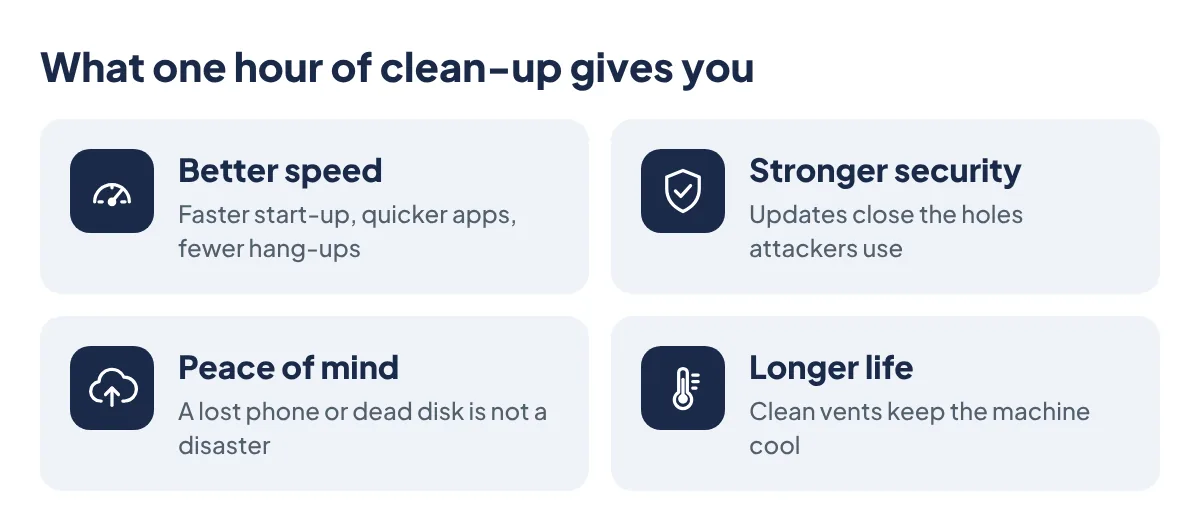
- Better speed. Free disk space and fewer background programs mean faster start-up, quicker apps and fewer hang-ups.
- Stronger security. Most attacks use weaknesses that were fixed long ago in an update. Updated devices, fewer old apps and fewer unused accounts mean fewer open doors.
- Peace of mind. With a tested backup, a lost phone, a dead hard disk or a virus is an inconvenience, not a disaster.
- Longer device life. Clean vents and fans keep the machine cool. Heat is one of the main reasons laptops slow down and parts fail early.
Before you start: 7 precautions
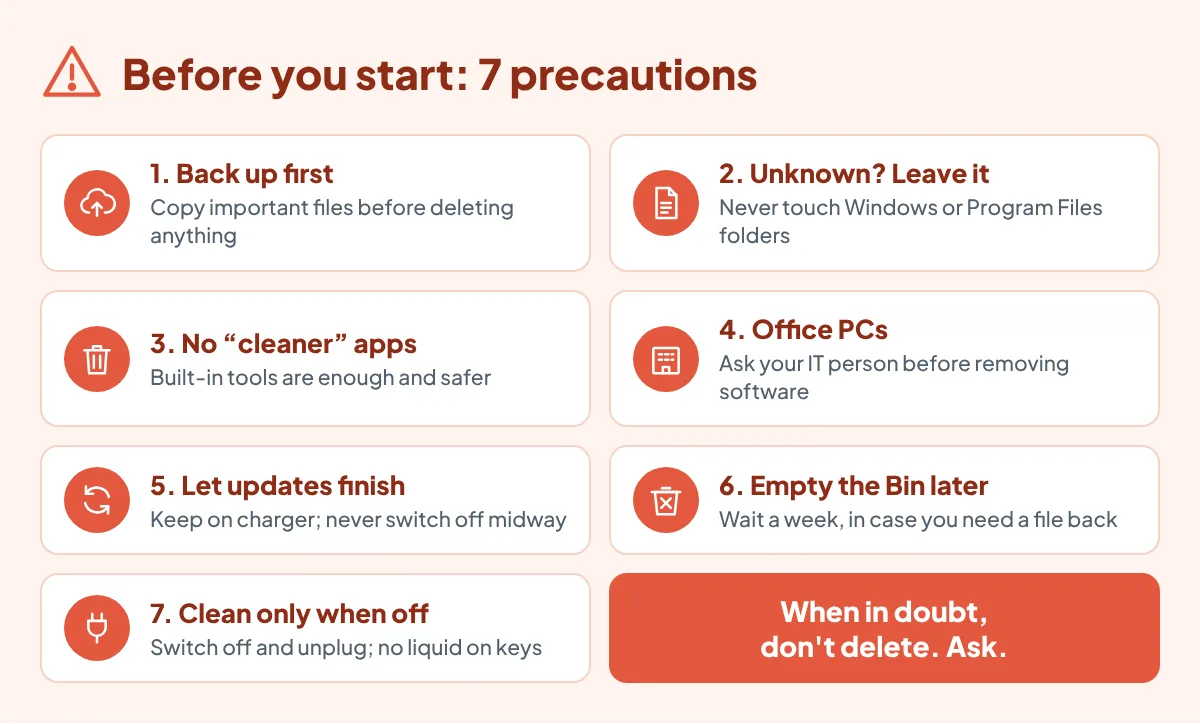
- Back up first. Copy important files to a pen drive, external disk or cloud before you delete anything.
- If you do not recognise it, do not delete it. Never touch files inside the Windows or Program Files folders, or system apps on your phone.
- Avoid “cleaner”, “booster” and “RAM saver” apps. Many show ads, collect your data or install other software. The tools already built into Windows, Android and iPhone are enough.
- Office computers: ask your IT person before removing any software (accounting, Tally, antivirus, printer or scanner software) or changing settings.
- During updates, keep the laptop on charger and do not switch it off, even if it seems stuck. Save your open work first.
- Empty the Recycle Bin a week later, not on the same day. If something was deleted by mistake, you can still bring it back.
- Physical cleaning only with the device switched off and unplugged. No liquid directly on the screen or keyboard.
Part 1: Clean up your Windows computer (30 to 40 minutes)

1. Clear the Desktop and the Downloads folder
What: Open Downloads, switch to Details view and sort by Size or Date. Delete old installers (.exe, .msi), duplicate PDFs and files you have already saved elsewhere. Move useful files into proper folders.
Why: Downloads quietly grows to many GB. It also keeps old e-mail attachments that may be unsafe. A tidy Desktop makes files easy to find and easy to back up.
2. Free up disk space with Windows’ own tools
What: Go to Settings → System → Storage. Open “Temporary files” (or “Cleanup recommendations” on Windows 11), tick what you do not need and click Remove. Turn on Storage Sense so Windows clears temporary files on its own.
Why: Windows needs free space to run smoothly and to install updates. Try to keep at least 15 to 20% of the C: drive free. A full drive is one of the most common reasons for a slow PC.
Careful: in Temporary files, do not tick “Downloads” unless you have already checked that folder.
3. Uninstall programs you no longer use
What: Settings → Apps → Installed apps. Sort by Size or by “Last used”. Uninstall old games, trial software, toolbars and anything you did not knowingly install.
Why: Unused programs take space, run in the background and stop getting updates. Old, outdated software is a favourite entry point for attackers.
Careful: keep drivers, “Microsoft Visual C++” and “.NET” entries, your antivirus, and printer and business software.
4. Stop unwanted programs from starting with Windows
What: Press Ctrl + Shift + Esc to open Task Manager → “Startup apps”. Right-click programs you do not need at start-up and choose Disable. This only stops the auto-start; the program stays installed.
Why: Every auto-start program delays boot and uses memory all day. Disabling a few often makes start-up noticeably faster.
Careful: keep your antivirus, cloud backup (OneDrive or Google Drive) and touchpad or audio drivers enabled.
5. Install every pending update, then Restart
What: Settings → Windows Update → Check for updates. Also update your browser, MS Office and antivirus. Then click Restart.
Why: Updates close security holes and fix bugs. Also note: “Shut down” in Windows does not fully reset the system, because of a feature called Fast Startup. “Restart” does. Restart at least once a week.
6. Check which Windows you are using
What: Press Windows key + R, type winver and press Enter.
Why: If it says Windows 10, the PC no longer receives security fixes, unless your organisation has paid for Microsoft’s extended updates (the one-year extended updates for home users ended on 13 October 2026). Plan a move to Windows 11 if the PC supports it, or a replacement in the coming months. Until then, be extra careful with e-mail attachments and banking on that PC. Our guide on running Windows 10 in 2026 explains the options for offices.
7. Clean the dust (very important in Delhi’s winter)
What: Switch off and unplug. Wipe the screen with a dry or slightly damp microfibre cloth. Turn the keyboard upside down and tap gently; clean between keys with a soft brush. Blow dust out of the air vents with short bursts of an air blower.
Why: Smog and dust settle inside fans and vents. The machine heats up, slows itself down to cool off, and may even shut down. Clean vents mean a cooler, quieter, faster computer.
Careful: never use a household vacuum cleaner inside a computer (static electricity can damage parts). Do not open laptops or PCs that are under warranty. If the fan stays loud even after cleaning, see why laptops overheat and what fixes it.
8. Back up, and test the backup
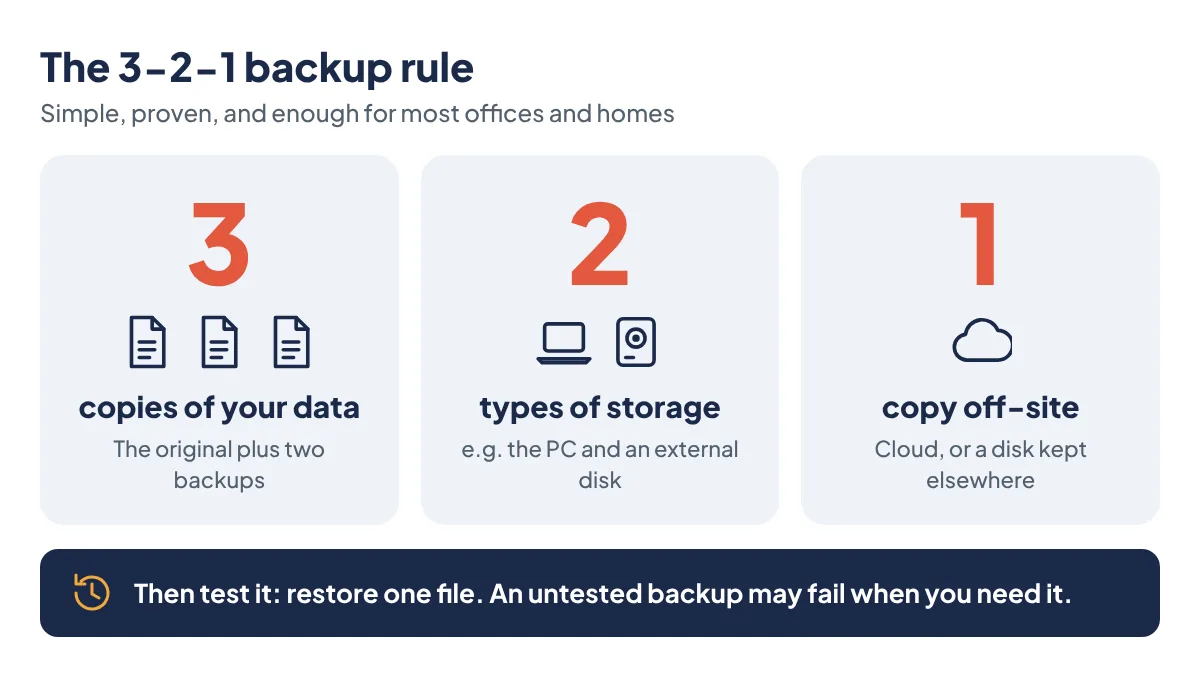
What: Follow the 3-2-1 rule: keep 3 copies of important data, on 2 different types of storage (for example the PC and an external disk), with 1 copy outside the office or home (cloud). Then try to restore one file from the backup.
Why: Hard disks and SSDs can fail without any warning, and ransomware can lock every file on a PC. A backup that has never been tested may not work on the day you need it.
Careful: unplug the external backup disk after the backup is done, so a virus on the PC cannot reach it.
Part 2: Clean up your browser, e-mail and accounts (about 15 minutes)
1. Remove browser extensions you do not use
What: In Chrome or Edge, open the menu → Extensions → Manage extensions. Remove anything you do not recognise or no longer use. In Chrome, also run Settings → Privacy and security → Safety check.
Why: Extensions can read the pages you visit. Unknown ones can show ads, redirect searches or steal login details. Fewer extensions also make the browser faster.
2. Check your passwords and turn on 2-step verification
What: Run the Password Checkup in your browser (or at passwords.google.com) to find leaked, weak or reused passwords. Change them, starting with e-mail and banking. Turn on 2-step verification for your e-mail, bank and social media accounts.
Why: Your e-mail is the master key: anyone who controls it can reset your other passwords. With 2-step verification, a stolen password alone is not enough to get in.
3. Review where you are logged in
What: In your Google account, run the Security Checkup (myaccount.google.com). Remove old phones and computers and any apps you no longer use. Close accounts on shopping sites and apps you stopped using.
Why: An old phone you sold or a forgotten app may still have access to your mail and files. Every unused account is one more place your data can leak from.
Careful: clearing cookies or “browsing data” logs you out of every website. Make sure you know your passwords before you do it.
Part 3: Clean up your phone (about 20 minutes)

1. See what is filling your phone
What: Android: Settings → Storage (or the “Files by Google” app → Clean). iPhone: Settings → General → iPhone Storage. Delete large videos, duplicate photos, screenshots and old downloads.
Why: A phone that is almost full becomes slow, heats up, and cannot install updates or save new photos.
2. Clean up WhatsApp
What: WhatsApp → Settings → Storage and data → Manage storage. Start with “Larger than 5 MB” and forwarded files. Under “Media auto-download”, turn off videos and documents on mobile data.
Why: WhatsApp is usually the biggest space user on Indian phones, mostly from forwarded videos and group media you never open again.
Careful: check for invoices, quotations and documents received from customers or suppliers before deleting a chat’s media.
3. Remove unused apps and check permissions
What: Uninstall apps you have not opened in months. Then check which apps can use your location, contacts, camera, microphone and SMS (Android: Settings → Security and privacy → Privacy → Permission manager; iPhone: Settings → Privacy & Security).
Why: Unused apps still run in the background, use data and battery, and some collect your information. A torch or wallpaper app has no reason to read your contacts or SMS.
4. Update the phone and all apps
What: Install the latest system update (Settings → Software update or System update) and update all apps from the Play Store or App Store. On Android, check the “Security update” date under Settings → About phone or Security.
Why: Updates fix security holes that scammers use. If your phone’s last security update is more than a year old, it is better not to use that phone for banking and UPI.
5. Lock down your phone and WhatsApp
What: Use a screen lock (PIN or fingerprint). In WhatsApp, turn on Settings → Account → Two-step verification, and check menu → Linked devices for any computer you do not recognise. Turn on “Find My Device” (Android) or “Find My” (iPhone).
Why: WhatsApp take-over scams are common, especially in the festive season. Two-step verification stops someone who tricks you into sharing the 6-digit code. Find My Device helps you locate, lock or erase a lost phone.
Careful: never share an OTP or WhatsApp code with anyone, even if the caller says they are from a bank, courier or the police.
6. Back up photos, contacts and chats
What: Make sure photos and contacts are backed up (Google Photos and your Google account on Android, iCloud on iPhone), and that WhatsApp chat backup is on (Settings → Chats → Chat backup).
Why: If the phone is lost, stolen or damaged, you get your photos, contacts and chats back on the new phone.
Careful: use Google Photos’ “Free up space” only after the backup shows complete. It deletes the copies on your phone.
7. Restart and clean
What: Restart the phone once a week. Switch it off and wipe the screen with a microfibre cloth. If the charger feels loose, remove lint from the charging port very gently with a wooden toothpick or a dry soft brush.
Why: A restart clears stuck apps and memory. Lint in the port is a common reason for slow or loose charging.
Careful: never use a metal pin or needle in the charging port.
Tips and tricks that make the clean-up easier
- Make a “To sort” folder. Move everything you cannot decide on into it and look at it again next month. The clean-up does not stall.
- Find big e-mails in Gmail: type
larger:10Min the search box. Addolder_than:2yto see only old ones. Deleted mail stays in Bin for 30 days. - Online-only files: in OneDrive or Google Drive for desktop, files can stay in the cloud and open when needed. They stay visible but stop using disk space.
- iPhone: Settings → General → iPhone Storage → “Offload Unused Apps” removes apps you do not use but keeps their data.
- Android: apps unused for a few months can lose their permissions automatically. Check that “Pause app activity if unused” is on in App info.
- Restart the Wi-Fi router once a month. It often fixes slow or dropping internet.
- Make it a habit: set a phone reminder for the first Saturday of every month. Ten minutes a month is easier than one big clean-up a year.
Bonus: 8 keyboard shortcuts that save time every day
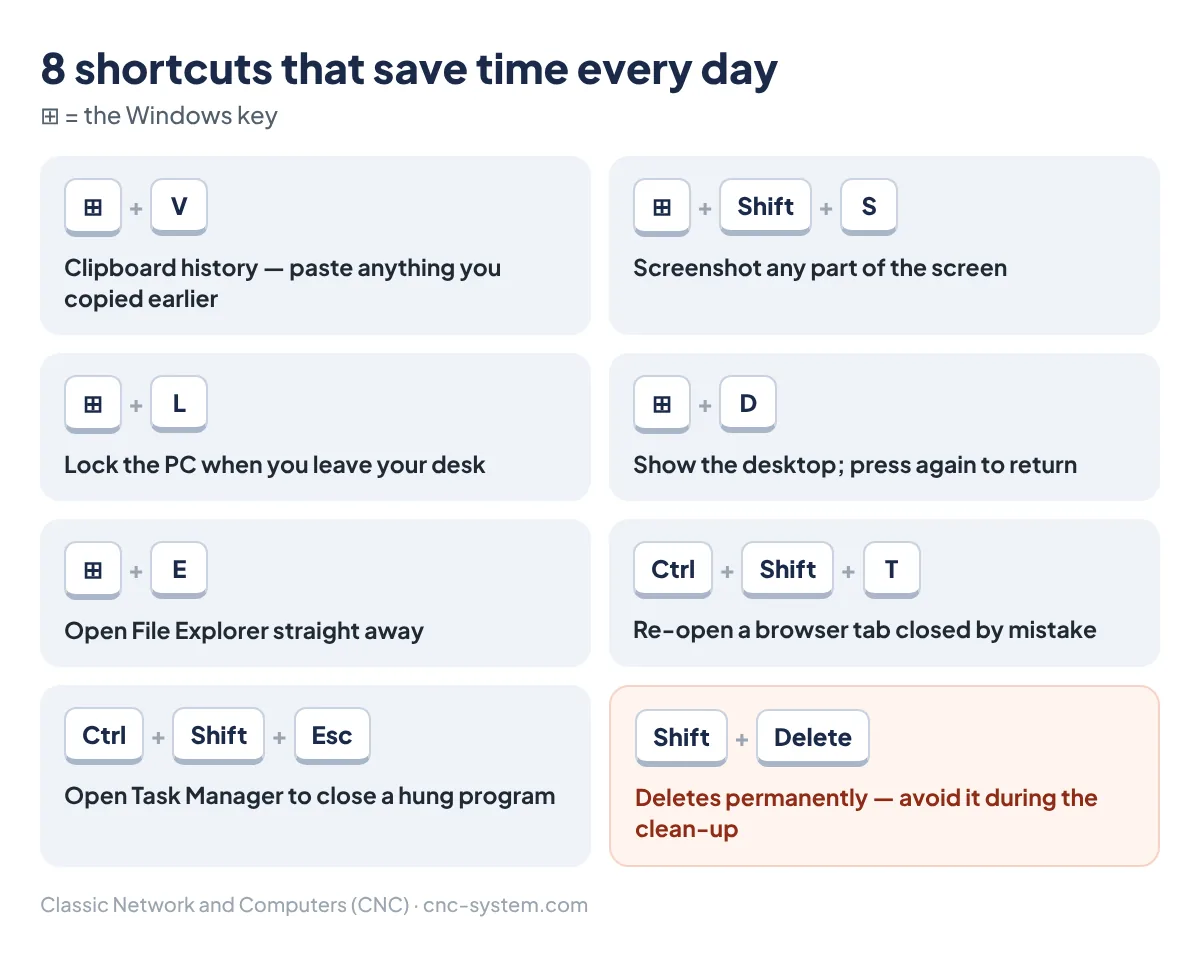
- Windows + V: clipboard history, so you can paste anything you copied earlier (turn it on the first time).
- Windows + Shift + S: screenshot of any part of the screen.
- Windows + L: lock the PC every time you leave your desk.
- Windows + D: show the desktop; press again to bring the windows back.
- Windows + E: open File Explorer straight away.
- Ctrl + Shift + T: re-open the browser tab you closed by mistake.
- Ctrl + Shift + Esc: open Task Manager to close a program that has hung.
- Shift + Delete: deletes a file permanently, skipping the Recycle Bin. Avoid it during the clean-up.
WhatsApp hack: search your own number in WhatsApp to open a chat with yourself (“Message yourself”). Use it to keep notes, links and files you want on both your phone and computer.
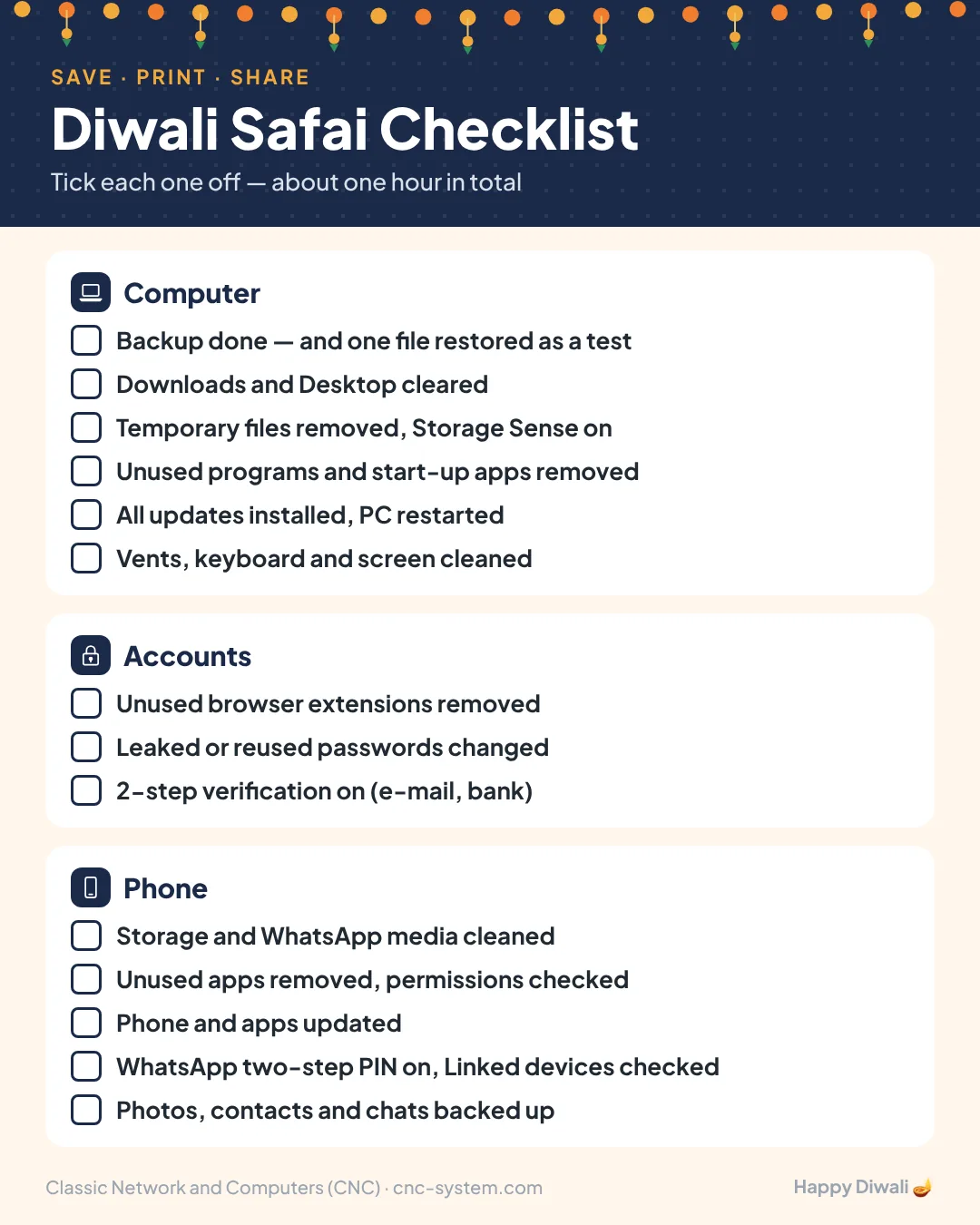
Your Diwali safai checklist
Save, print or forward this checklist to your family or team. Tick each item as you finish it.
When a clean-up is not enough
A clean-up fixes clutter, not faults. Stop and get the device checked if you notice any of these:
- The fan stays loud or the laptop shuts down from heat even after the vents are clean.
- The hard disk makes clicking or grinding sounds, or files suddenly will not open. Stop using it and do not run recovery software on it; see how data recovery works first.
- The laptop or phone battery is swollen, or the body is lifting. Do not charge it.
- Pop-ups, new browser toolbars or a changed home page come back after you remove them. That points to malware.
For offices with many computers, our IT health checklist for Delhi SMEs covers the business side: backups, firewall, licences and asset lists. And before you hand a laptop for repair anywhere, follow this 10-point checklist.
Frequently asked questions
How often should I clean up my computer and phone?
Do a full clean-up once a year, for example before Diwali, and a 10-minute check once a month: clear Downloads, install updates, restart, and clear WhatsApp media. Clean laptop vents every 3 to 6 months in Delhi because of dust and smog.
Are cleaner or booster apps safe to use?
It is better to avoid them. Many show ads, collect data or install other software, and some delete files you need. Windows Storage Sense, Android’s Files by Google and iPhone Storage settings do the same job safely.
Will deleting temporary files harm my computer?
No. Temporary files created by Windows and apps are safe to remove through Settings → System → Storage. Only avoid ticking the Downloads folder there unless you have checked it, because it contains your own files.
Why is my laptop still slow after the clean-up?
Common reasons are a nearly full or ageing hard disk, too little RAM, overheating from a blocked fan, or malware. An old hard disk is the most common cause; moving to an SSD usually makes the biggest difference. Get it checked if the slowness continues.
Is it safe to use a vacuum cleaner to clean a laptop?
Do not use a household vacuum cleaner inside a computer, because static electricity can damage parts. Use short bursts of an air blower on the vents with the laptop switched off and unplugged.
What is the 3-2-1 backup rule?
Keep 3 copies of important data, on 2 different types of storage, with 1 copy outside your home or office, such as the cloud. Test the backup by restoring one file, and unplug the external backup disk when the backup is done.
📍 O-41 West Patel Nagar · Mon–Sat 10 AM–7 PM
Need laptop repair in Delhi?
CNC fixes all brands — Dell, HP, Lenovo, MacBook. Same-day service from ₹299. Free pickup within 10 km.
⭐ 4.9★ · 1,000+ Google reviews · Since 1996 · GST invoice · Learn more →
Prices and rates mentioned in this article are indicative estimates as of October 2026, exclusive of GST unless stated, and may change without notice due to exchange-rate movements, supply constraints and market demand. Please confirm current pricing and availability with CNC before making any decision.